The Backup & Restore tools allow you to create bench backups, download backup archives, restore existing backups, upload backup archives, or create a new bench from a backup archive.
Overview
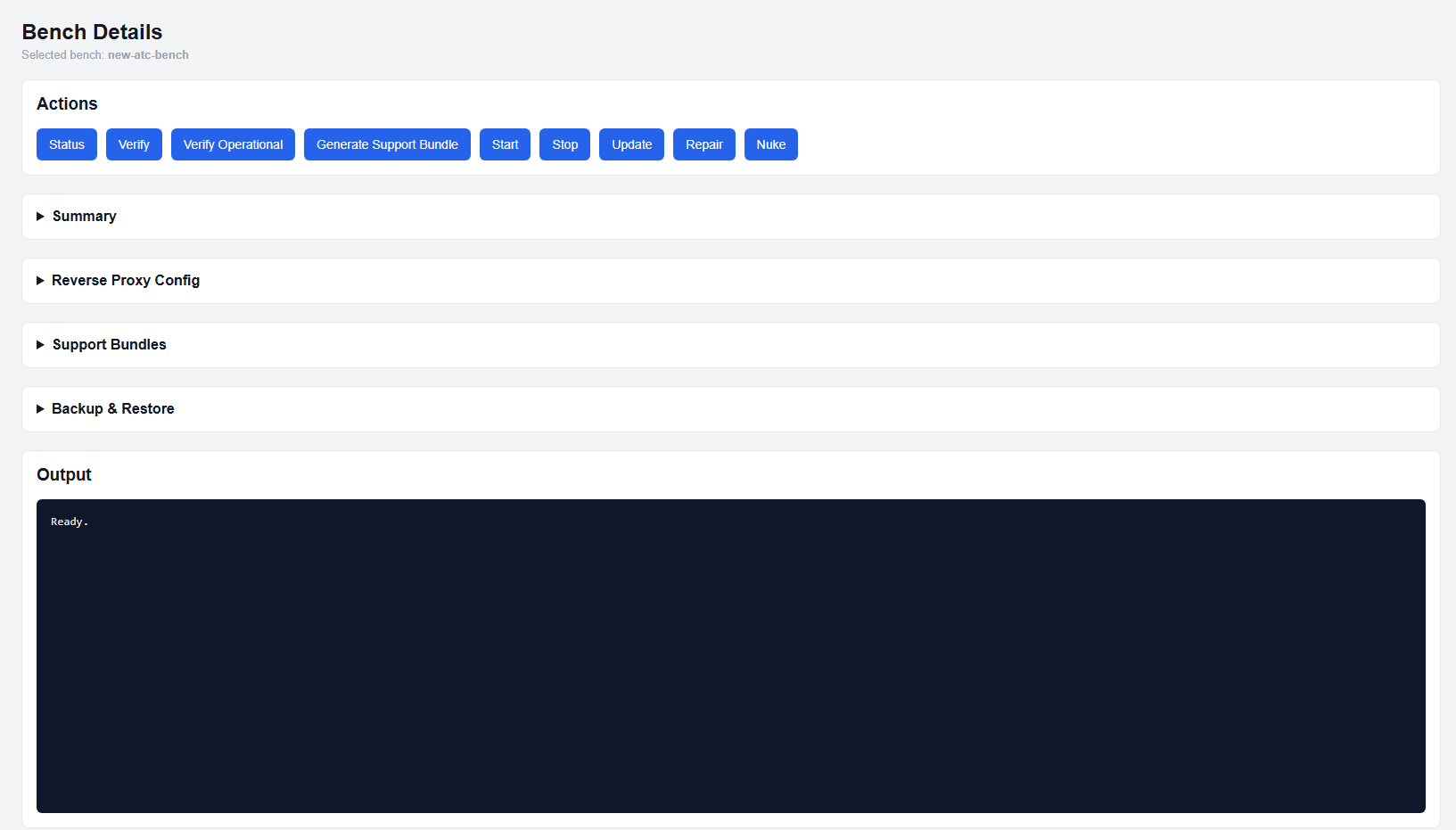
Bench Details page
Backup a Bench
- Open the Bench Details page.
- Expand the Backup & Restore section.
- Click Create Backup.
- After the backup is created, click Download to download a copy of the backup archive.
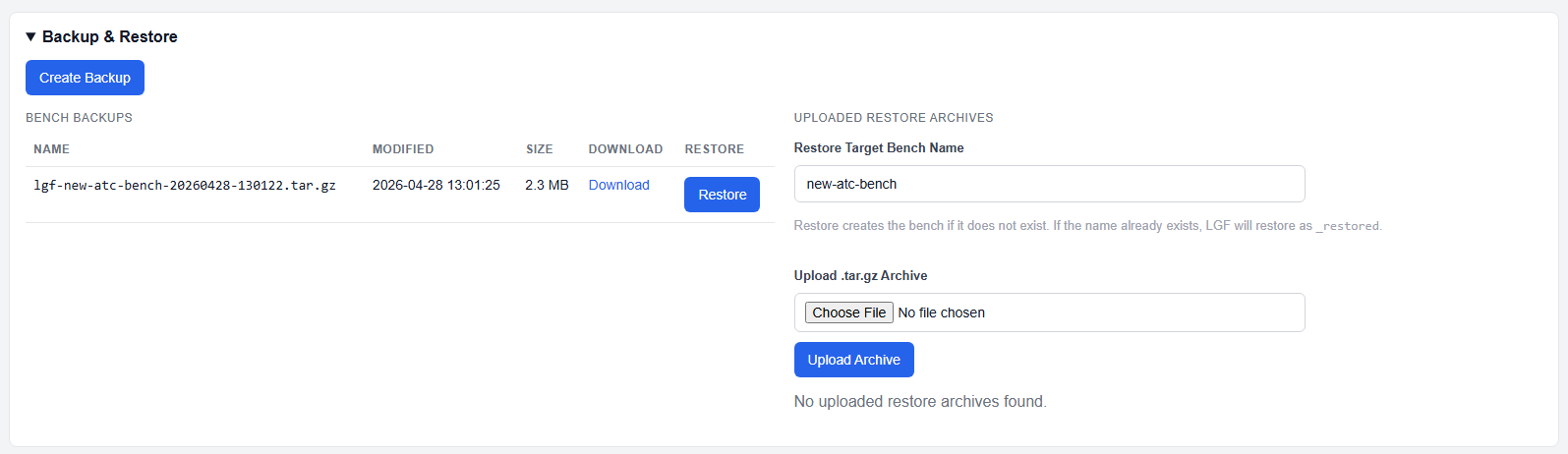
Backup & Restore section in Bench Details
Restore an Existing Bench Backup
- Open the Bench Details page.
- Expand the Backup & Restore section.
- Find the backup you want to restore.
- Click Restore next to that backup.
Restore an Uploaded Backup to an Existing Bench
- Open the Bench Details page.
- Expand the Backup & Restore section.
- Click Choose File.
- Select the backup archive.
- Click Upload Archive.
- Click Restore next to the uploaded archive.
Create a New Bench from a Backup Archive
- Open the new bench restore section.
- Enter the bench name to restore.
- Click Choose File.
- Select the bench archive file.
- Click Upload and Restore.
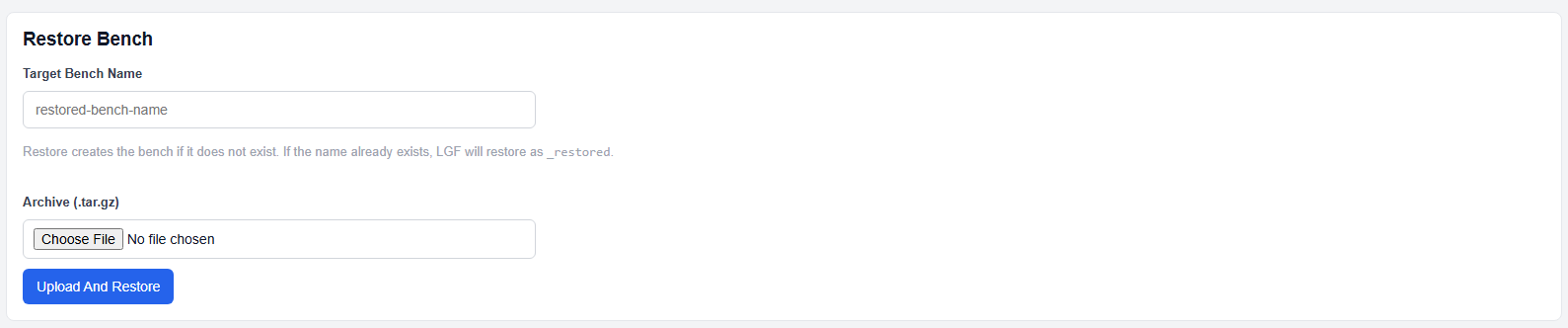
New Bench restore section
Restore naming behavior: If the bench name does not already exist, LGF creates the bench using that name. If the name already exists, LGF restores the backup using the suffix _restored.
Expected Result
- Backup creates a downloadable bench archive.
- Restore replaces the selected bench from the chosen backup.
- Upload Archive makes an external backup available for restore.
- Upload and Restore creates a restored bench from the selected archive.