Overview
This article provides instructions for administrators on how to set up Stripe integration for handling paid plans and subscription checkouts. Proper configuration of Stripe is essential for enabling billing and collecting payments from customers.
Prerequisites
- Administrative access to the LGF Cloud Portal.
- An active Stripe account.
- Your Stripe Publishable key, Secret key, and Webhook secret.
Steps
1. Locate the Stripe Settings
The Stripe configuration panel is located within the administrative settings of the Cloud Portal.
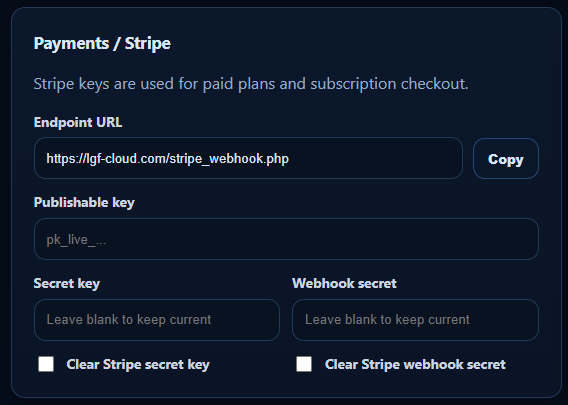
_Figure: The Payments / Stripe panel for entering API keys and webhook information._
- Log in to the Cloud Portal as an administrator.
- Navigate to the Settings or Administration area.
- Find the Payments / Stripe section.
2. Configure Webhook Endpoint in Stripe
You must provide Stripe with the webhook endpoint URL from your Cloud Portal. This allows Stripe to send real-time event data, such as successful payments or subscription changes, back to your portal.
- In the Stripe panel, copy the Endpoint URL.
- Log in to your Stripe Dashboard.
- Navigate to Developers > Webhooks.
- Click Add an endpoint and paste the URL you copied.
- Select the events to listen to (e.g.,
checkout.session.completed,invoice.paid). - After creating the webhook, Stripe will provide a Webhook secret. Copy this value.
3. Enter Stripe Keys in Cloud Portal
Enter the API keys and webhook secret from your Stripe account into the Cloud Portal's Stripe settings.
- Publishable key: Paste your Stripe publishable key (e.g.,
pk_live_...). - Secret key: Paste your Stripe secret key. This field is write-only; for security, it will appear blank if a value is already set. To update it, simply enter a new key.
- Webhook secret: Paste the webhook secret you obtained from the Stripe Dashboard. This is also a write-only field.
- Click Save to apply the configuration.
Verification
- Once saved, the portal will be ready to process payments through Stripe.
- You can verify the integration by creating a test plan and performing a checkout to ensure payments are processed correctly and the corresponding events are received by the webhook.
Troubleshooting
Payments are failing
- Cause: The Stripe keys (Publishable or Secret) may be incorrect or from a test environment.
- Fix: Double-check that you are using the correct live keys from your Stripe account. Ensure there are no leading or trailing spaces.
Subscription status not updating
- Cause: The webhook endpoint may be configured incorrectly in Stripe, or the Webhook secret is wrong.
- Fix: Verify the Endpoint URL is correct in your Stripe webhook settings. Regenerate the webhook secret in Stripe and update it in the Cloud Portal to ensure they match.