Overview
This guide explains how to connect a new host, such as an LGF Operator Console, to your Cloud Portal. This process involves adding the host's URL, providing an API key for secure communication, and testing the connection.
Prerequisites
- A running LGF Cloud Portal instance.
- A deployed LGF Operator Console or other compatible host.
- Administrative access to both the Cloud Portal and the host.
Steps
1. Obtain the Cloud API Key from the Operator Console
Before adding a host to the Cloud Portal, you need to retrieve its unique Cloud API Key. This key authorizes the Cloud Portal to communicate with the host.
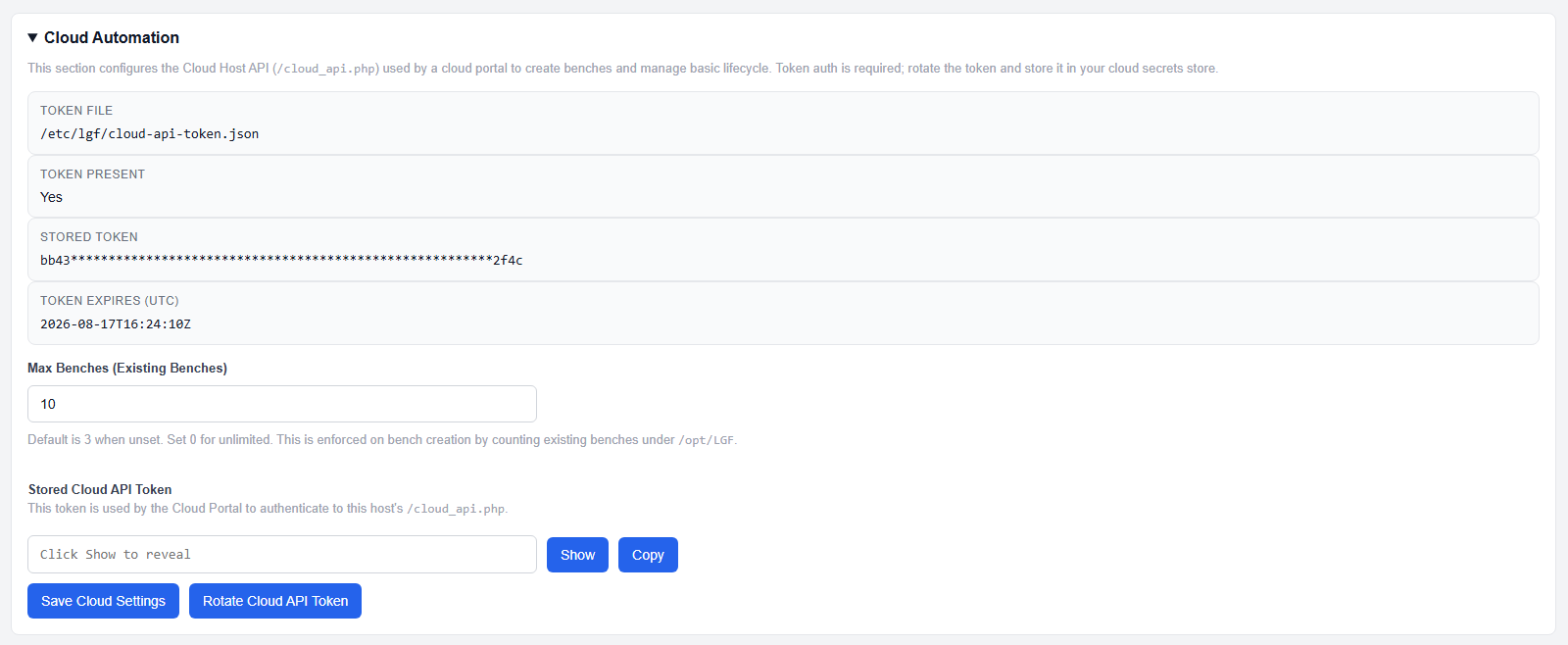
_Figure: The Cloud API Key is located in the main dashboard of the Operator Console._
- Log in to your LGF Operator Console.
- On the main dashboard, locate the Cloud API Key section.
- Copy the full API key. You will need this for the next step.
2. Add the Host to the Cloud Portal
With the API key copied, you can now register the host in the Cloud Portal.
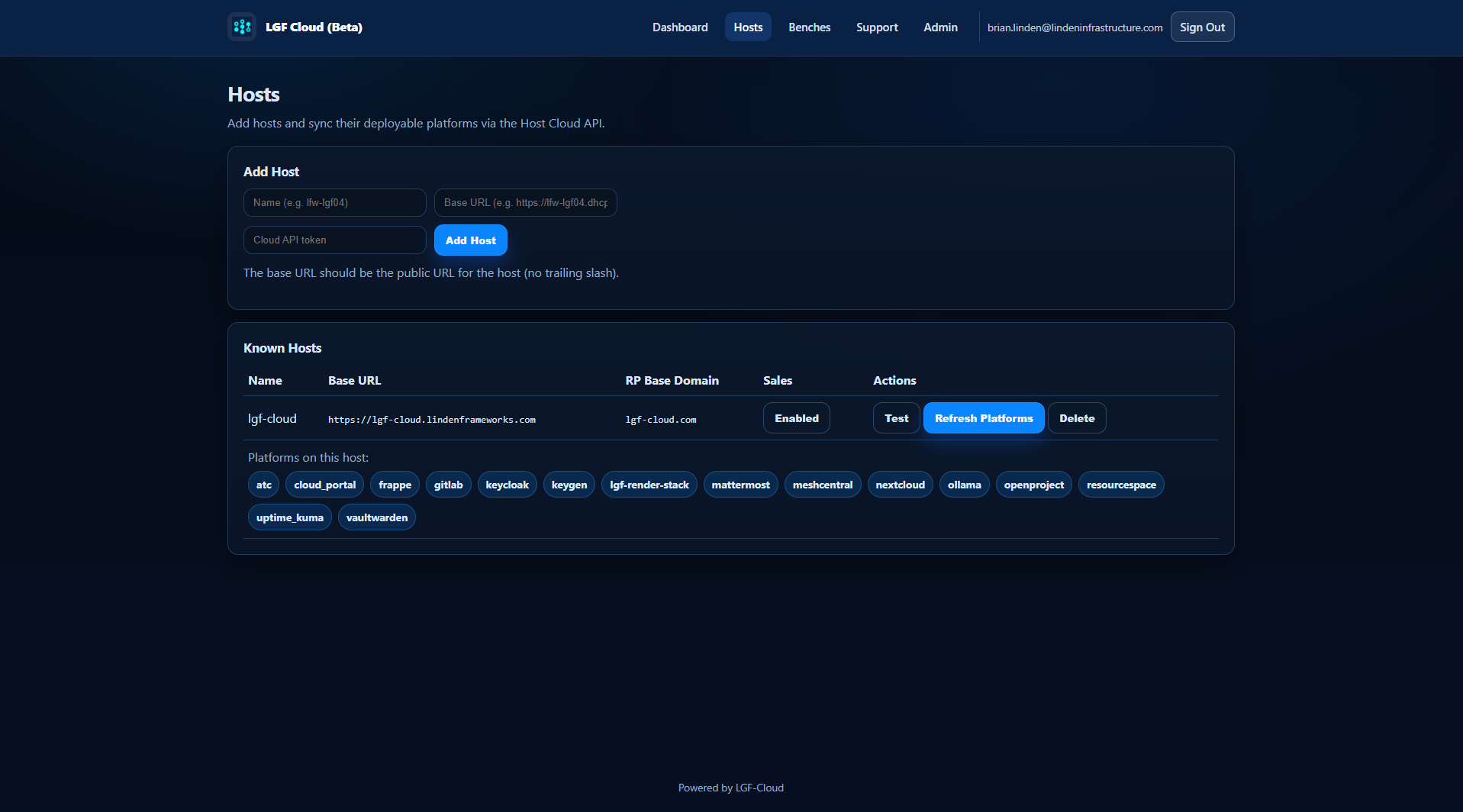
_Figure: The 'Add Host' interface in the Cloud Portal._
- In the Cloud Portal, navigate to the Hosts management section.
- In the 'Add Host' form:
- Name: Enter a descriptive name for your host (e.g., "Primary Operator Console").
- Host URL: Enter the full URL of the host you are adding (e.g.,
https://operator-console.example.com). - Cloud API Key: Paste the API key you copied from the Operator Console.
- Submit: Click "Add Host" to save the configuration.
- Click Test to validate the connection details and initiate the host.
- Click the Add Host button to save the configuration. A successful test is required before saving the host.
3. Refresh Platforms
After a host is successfully added, you must synchronize its platforms.
- In the Cloud Portal's Hosts section, locate your newly added host.
- Click the Refresh Platforms button. This fetches the available platforms and services from the host and makes them visible in the Cloud Portal.
- Note: You must also perform this "Refresh Platforms" action anytime you sync libraries or make configuration changes (like field names or display names) on the host itself to ensure the changes are reflected in the Cloud Portal.
Verification
- The host appears in the Cloud Portal's host list with a "Connected" status.
- After refreshing, the platforms and services from the host are visible and accessible within the Cloud Portal.
Troubleshooting
Host Connection Fails
- Cause: Incorrect URL, expired/incorrect API key, or network firewall issues.
- Fix: Double-check that the Host URL is correct and accessible from the Cloud Portal instance. Verify the API key is an exact match. Ensure no firewalls are blocking communication between the two systems on the required ports.
Platforms Not Appearing
- Cause: The "Refresh Platforms" step was missed.
- Fix: Navigate to the Hosts section and click "Refresh Platforms" for the relevant host.