Overview
The Backups page is where you define recurring bench backup schedules and restore bench archives from the Operator Console. Use it when you want a repeatable backup policy for a bench or when you need to recover from a saved archive.
Prerequisites
- Access to the Operator Console as an admin or operator with backup permissions
- A bench already created in the console
- A backup destination available if you are not using the default target
- Enough storage to hold the retention window you plan to keep
Create a backup schedule
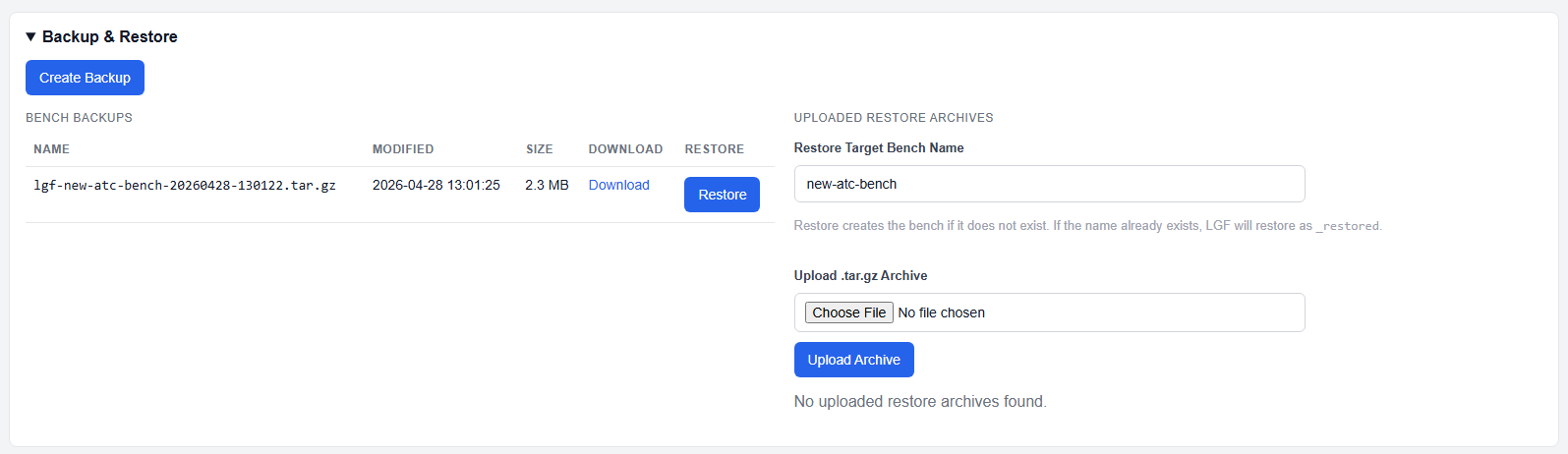
_Figure: Create a new backup schedule, choose a destination, and restore uploaded archives from the Backups page._
- Open Operator Console > Backups.
- In Create Schedule, enter a clear schedule name such as
Weekly Bench Backups. - Enable the schedule when you want it to run automatically.
- Choose the frequency:
- Daily for frequent backups
- Weekly for a once-per-week run
- Monthly for a calendar-based schedule
- Set the backup time and, if needed, the day of week or day of month.
- Set Retention to control how many previous backups are kept for each bench.
- Pick the destination:
- Default uses the existing OC/framework backup target without exposing the path.
- Other destination types can be used when you want backups to land on local, NFS, or SMB storage.
- Expand Destination Details if you need to verify or edit the destination settings.
- Click Create Schedule to save the schedule.
- Use Validate Destination before the first run if you want to confirm the target is reachable.
The retention setting acts as a hard cap. Once the cap is reached, older backups are rotated out.
Manage an existing schedule
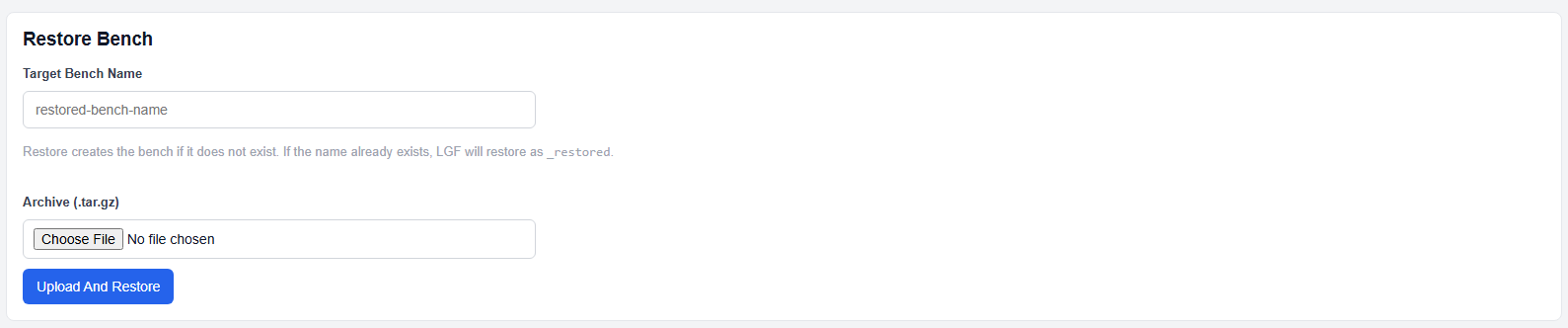
_Figure: An existing schedule can be edited, validated, linked to benches, or deleted from the schedule detail card._
When a schedule already exists, the detail card lets you review and change the configuration without recreating it.
- Open the schedule card from the Schedules section.
- Review the schedule summary at the top of the card.
- Update the schedule name, frequency, time, destination, or retention if the policy changes.
- Use Save Schedule to keep the edits.
- Use Validate Destination when you want to check the destination again.
- Use Delete Schedule only when the schedule is no longer needed.
- In Bench Membership, choose a bench and click Add Bench to attach it to the schedule.
- Remove a bench from the schedule when it should stop receiving that backup policy.
- Review Schedule History when you need to confirm when the schedule last ran or changed.
Restore from a backup
The Backups page also shows restore archives for benches and uploaded .tar.gz files.
- Use the existing bench archive list to restore a bench that already has a saved backup.
- Use the uploaded archive section when you need to restore from an external backup file.
- If the target bench name does not exist, LGF creates it.
- If the target bench name already exists, LGF restores the archive using the
_restoredsuffix.
Verification
- The schedule appears in the Schedules list.
- The destination validates successfully.
- The bench membership list shows the correct benches.
- Backup archives appear after the schedule runs.
- Restore creates either a new bench or a
_restoredcopy as expected.
Troubleshooting
Destination validation fails
- Check the destination type and make sure the storage target is reachable.
- Verify that the destination details are complete.
- Re-run Validate Destination after fixing the path, share, or credentials.
A bench is missing from the schedule
- Open the schedule card and confirm it was added under Bench Membership.
- Save the schedule after making changes.
- Refresh the page and confirm the bench still appears in the membership list.
Restore creates an unexpected name
- LGF appends
_restoredwhen the target bench already exists. - Pick a unique target name if you want a fresh bench instead of a suffix-based restore.