Overview
This article provides a step-by-step guide for administrators on managing the sales catalog within the LGF Cloud Portal. The process includes defining benches, which represent deployable platform configurations, and grouping them into bundles for customer provisioning. This workflow is restricted to users with administrative privileges.
Prerequisites
- Administrative access to the LGF Cloud Portal.
- A clear understanding of the platforms and services you intend to offer.
Steps
1. Access the Sales Catalog
The entry point for this workflow is the "Edit Sales Catalog" button, which is only visible to administrators on the main bench management page.
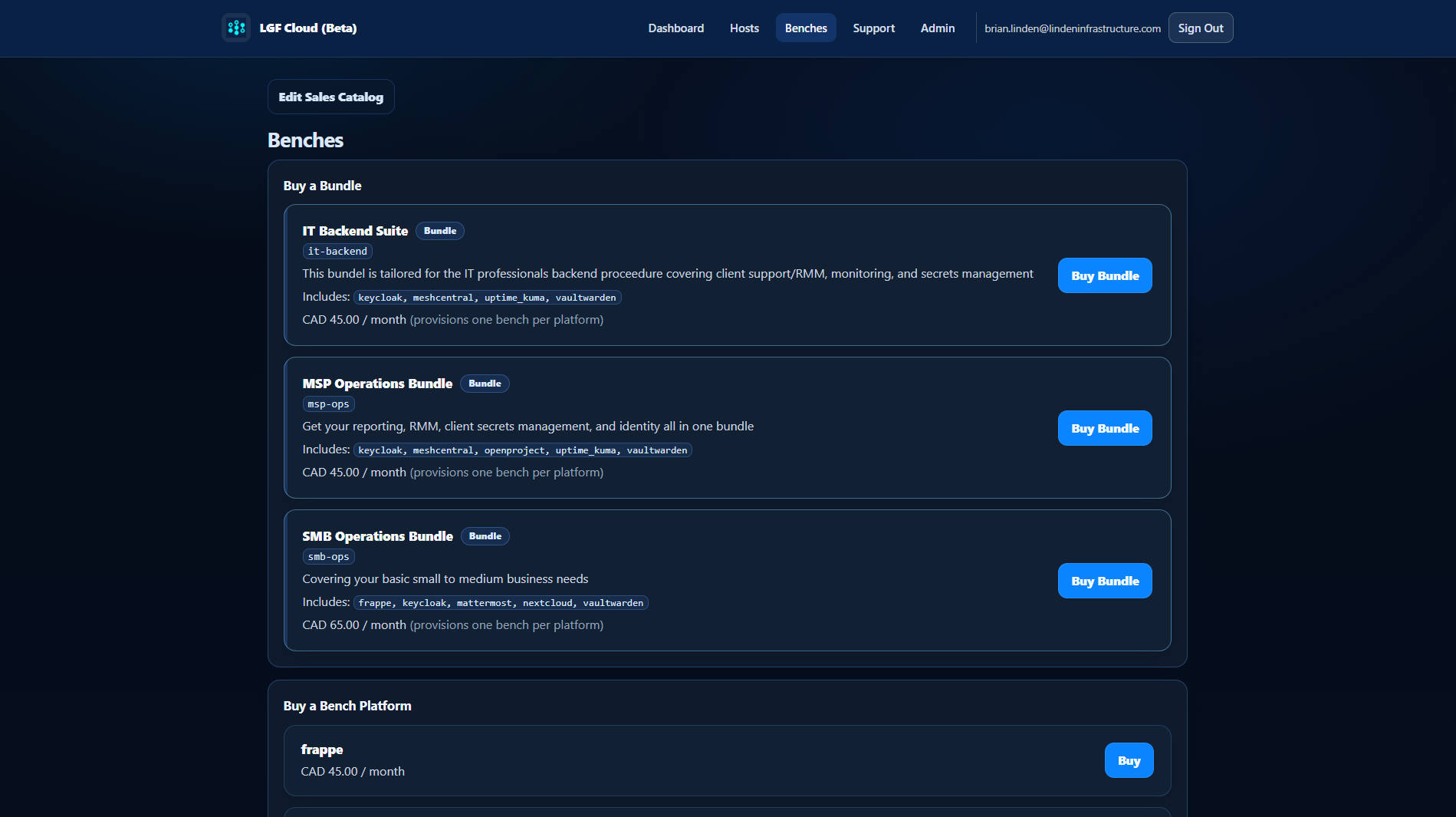
_Figure: The "Edit Sales Catalog" button provides entry to the provisioning workflow._
- Log in to the Cloud Portal as an administrator.
- Navigate to the main Benches page.
- Click the Edit Sales Catalog button to begin.
2. Create or Edit a Bench
Benches are the fundamental building blocks of the sales catalog. Each bench defines a specific, configurable platform that can be provisioned.
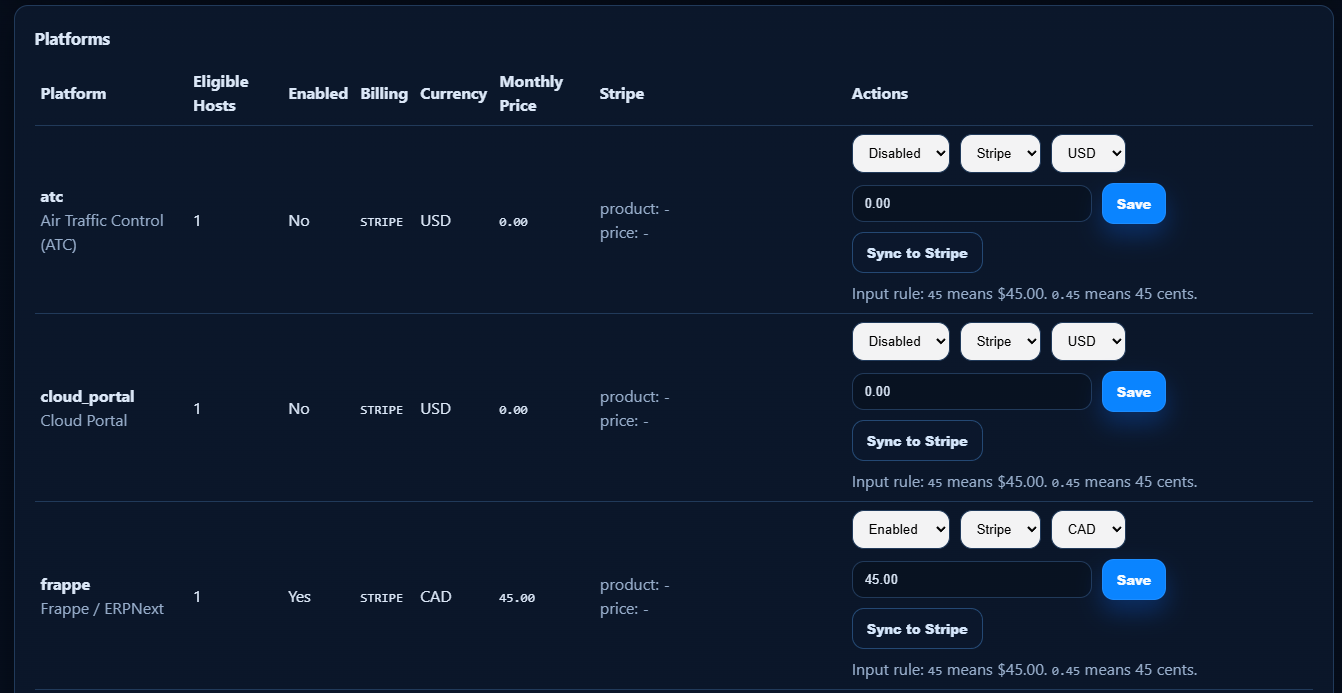
_Figure: The form for creating or editing a bench configuration._
- From the Sales Catalog page, click Add Bench or select an existing bench to edit.
- Fill out the bench configuration fields:
- Name: A descriptive name for the bench (e.g., "Standard GitLab Instance").
- Description: A summary of what the bench provides.
- Platform: Select the underlying LGF platform to be deployed (e.g.,
gitlab). - Configuration: Define platform-specific parameters and default values.
- Click Save Bench to add it to the catalog.
3. Create a Bundle
Bundles are collections of one or more benches that are offered to customers as a single package.
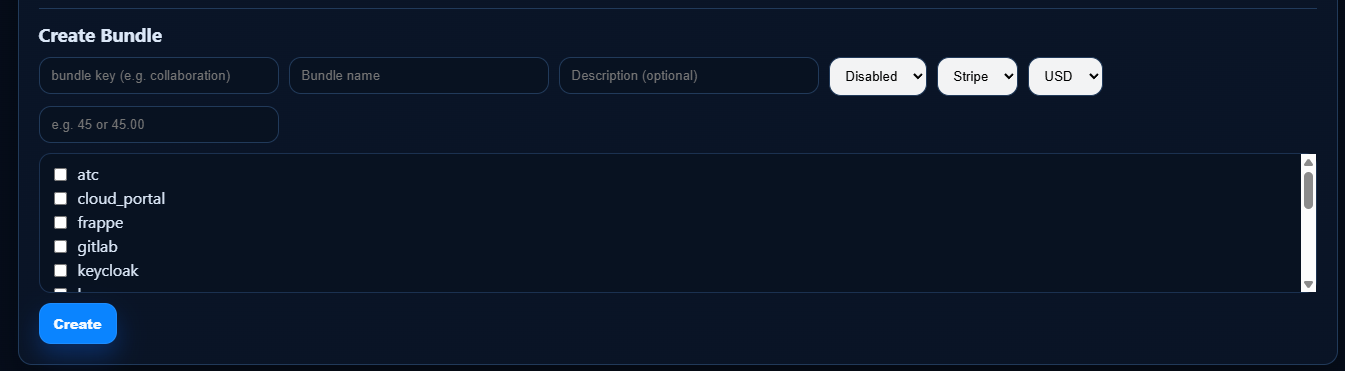
_Figure: Creating a new bundle by selecting available benches._
- In the Sales Catalog, navigate to the Bundles section.
- Click Add Bundle.
- Provide a Name and Description for the bundle (e.g., "Developer Starter Pack").
- From the "Available Benches" list, select the benches you want to include in this bundle.
- Click Save Bundle.
4. Edit a Bundle
Existing bundles can be modified to add or remove benches or to update their descriptions.
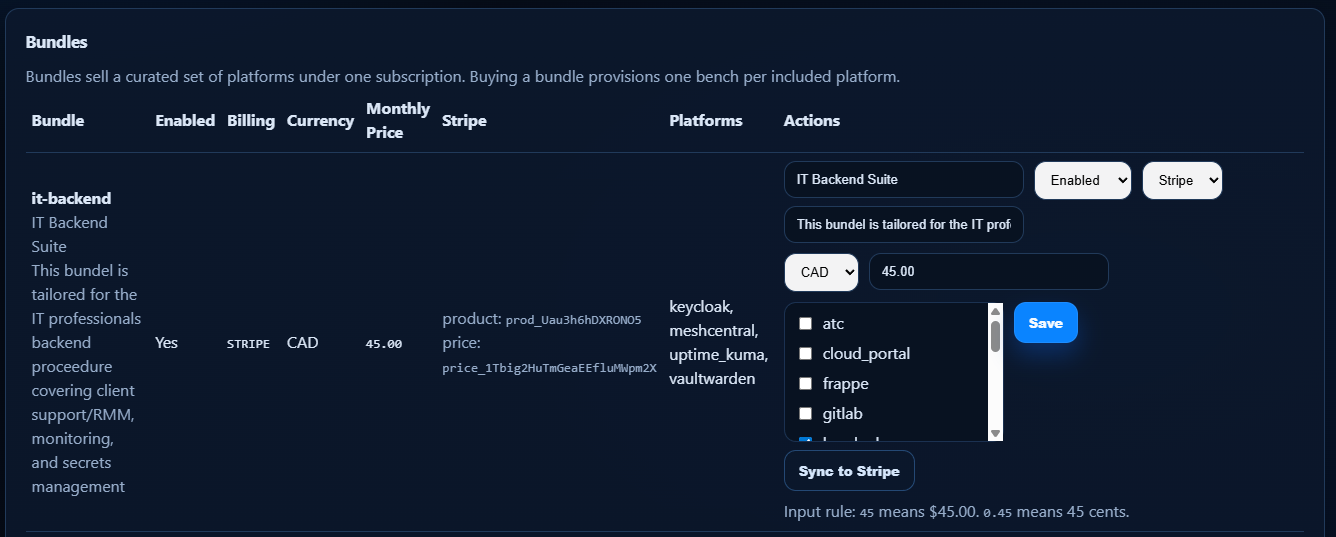
_Figure: Modifying an existing bundle to change its composition._
- From the list of existing bundles, click the Edit button next to the bundle you wish to modify.
- Update the Name or Description as needed.
- Add or remove benches from the bundle by selecting or deselecting them from the list.
- Click Save Bundle to apply the changes.
Verification
- After saving, the new or updated benches and bundles appear correctly in the Sales Catalog.
- The configured bundles become available for selection during customer provisioning workflows.
Troubleshooting
"Edit Sales Catalog" Button Not Visible
- Cause: You are not logged in with an account that has administrative privileges.
- Fix: Log out and sign in with an administrator account.
Bench or Bundle Fails to Save
- Cause: Required fields may be missing or contain invalid data.
- Fix: Ensure all required fields (like Name and Platform) are filled out correctly before saving.
Related
- Managing Cloud Portal Hosts
- General Deployment