Overview
This article provides instructions for administrators on how to integrate an ERPNext instance with the LGF Cloud Portal. This integration enables a "Support" feature within the portal, allowing for direct creation of helpdesk tickets in ERPNext.
Prerequisites
- Administrative access to the LGF Cloud Portal.
- An active ERPNext instance.
- An account in ERPNext with appropriate permissions to generate API keys and access the helpdesk.
Steps
1. Generate API Credentials in ERPNext
Before configuring the portal, you must generate an API key and secret from within your ERPNext instance.

_Figure: The API Access section in ERPNext for generating user-specific API credentials._
- Log in to your ERPNext instance.
- Best Practice: It is highly recommended to create a dedicated service account user for this integration with the role of Agent to limit permissions.
- Navigate to the user settings page for the desired account (e.g., your new service account) by clicking the user icon and going to Users -> [Your Username] -> Settings.
- Expand the API Access section.
- Click Generate Keys. ERPNext will display a new API Key and API Secret.
- Important: Copy the API Secret immediately and store it in a safe place. You will not be able to view it again after leaving this page. The API Key, however, will remain visible.
2. Configure Helpdesk Integration in Cloud Portal
Once you have your ERPNext credentials, you can configure the integration in the LGF Cloud Portal.
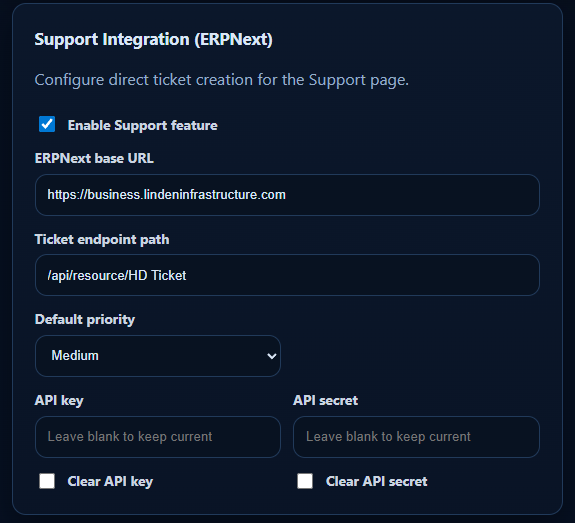
_Figure: The ERPNext support integration panel in the LGF Cloud Portal._
- Log in to the Cloud Portal as an administrator.
- Navigate to the Settings or Administration area.
- Locate the Support Integration (ERPNext) panel.
- Check the Enable Support feature box to activate the helpdesk functionality.
- ERPNext base URL: Enter the main URL of your ERPNext instance (e.g.,
https://business.lindeninfrastructure.com). - Ticket endpoint path: Enter the API path for the helpdesk ticket resource. For a standard ERPNext installation, this is typically
/api/resource/HD Ticket. - Default priority: Select a default priority level for tickets created via the portal.
- API key: Paste the API Key you generated in ERPNext.
- API secret: Paste the API Secret you saved from ERPNext.
- Click Save to apply the configuration.
Verification
- After enabling, a "Support" or "Helpdesk" page should become visible in the Cloud Portal.
- Submitting a ticket through the new support page should successfully create a new ticket in your ERPNext helpdesk with the default priority.
Troubleshooting
Ticket Creation Fails
- Cause: Incorrect API credentials, base URL, or endpoint path. The ERPNext user may also lack permissions.
- Fix: Double-check that the API Key and Secret are correct. Verify the Base URL points to your ERPNext instance and that the Ticket endpoint path is accurate. Ensure the ERPNext user associated with the API keys has the "Agent" role and permissions to create tickets.
"Support" Page Not Visible
- Cause: The "Enable Support feature" checkbox may not be checked.
- Fix: Ensure the feature is enabled in the Support Integration settings and that the configuration has been saved.