The Frappe / ERPNext platform provides a full business application stack within LGF. It deploys ERPNext and supporting services including database, cache, and web frontend as a single managed bench.
Overview
Frappe is used when you want a complete ERP-style application platform managed under LGF.
- Deploys ERPNext (core ERP)
- Supports optional applications (HRMS, Helpdesk, Telephony)
- Includes asset build system and web frontend
- Runs with MariaDB and Redis services
This platform is deployed and managed as a single LGF bench.
Deployment
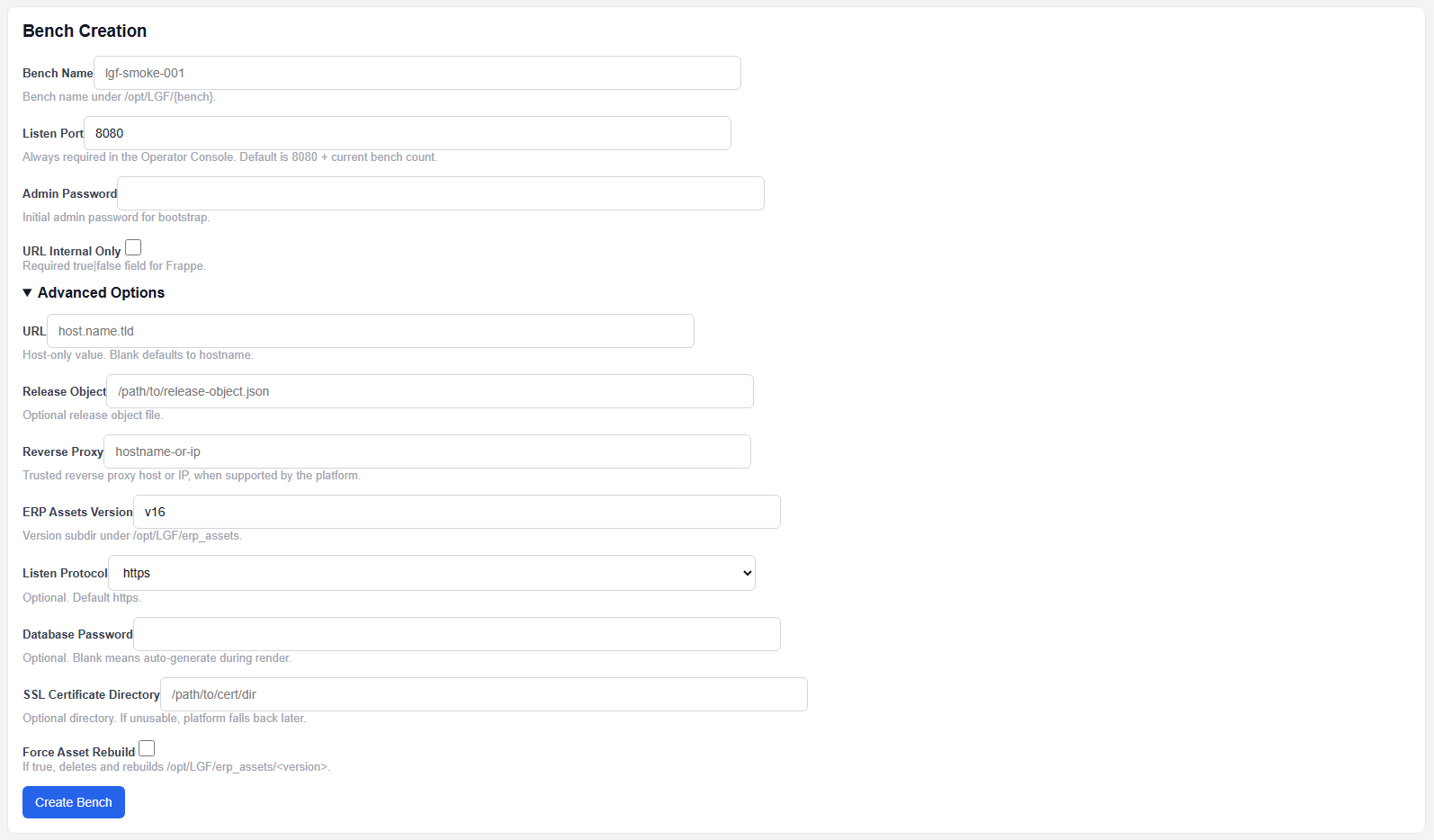
Frappe deployment configuration
- Select Frappe from the platform dropdown.
- Enter a Bench Name.
- Set the Listen Port.
- Enter an Admin Password.
- Set Raw Port Access to true or false.
- (Optional) Configure additional fields.
- Click Create Bench.
Required Fields
- Admin Password: Initial administrator password for bootstrap
- Raw Port Access: Required true/false value controlling access behavior
These fields are required for Frappe deployment.
Security Warning for Raw Port Access:
When Raw Port Access is enabled in the Operator Console, a prominent security warning will appear:
Exposing bench internal ports are a security risk and should be avoided, please use this feature with extreme caution
This warning is displayed with a red yield sign to emphasize the security implications. Raw Port Access should only be used when absolutely necessary and with full understanding of the risks involved.
Standard Fields
- Bench Name: Unique identifier for the deployment
- Listen Port: External listener port (auto-allocated if not set)
- URL: Host-only URL (no scheme, path, or port)
URL defaults to an automatically generated hostname if not provided.
Advanced Options
- ERP Assets Version: Version directory under
/opt/LGF/erp_assets/ - Listen Protocol: HTTP or HTTPS (default: HTTPS)
- Database Password: Optional override (auto-generated if not set)
- SSL Certificate Directory: Optional certificate directory
- Reverse Proxy: Trusted reverse proxy host or IP
- Force Asset Rebuild: Rebuilds ERP assets if enabled
These options control runtime configuration and deployment behavior.
Expected Result
- The Frappe bench is created and enters a building state
- Services are deployed and initialized
- The application becomes accessible via configured port or hostname
Important Notes
- Admin Password is required and must be set during deployment
- URL must be host-only (no scheme, path, or port)
- Raw Port Access must be explicitly set
- Database password is auto-generated if not provided
- Advanced options should only be modified when required
Next Steps
- Access the Frappe interface using the configured endpoint
- Complete application-level configuration inside ERPNext
- Use Bench Details to monitor and manage the deployment