The Licensing section stores the license key used by the Operator Console. On first login, a license key must be entered before the rest of the Operator Console is available.
First Login
When the Operator Console is opened for the first time, the console displays the license entry screen.
- Enter the license key in the License Key field.
- Click Save License Key.
- After the key is saved, the rest of the Operator Console becomes available.
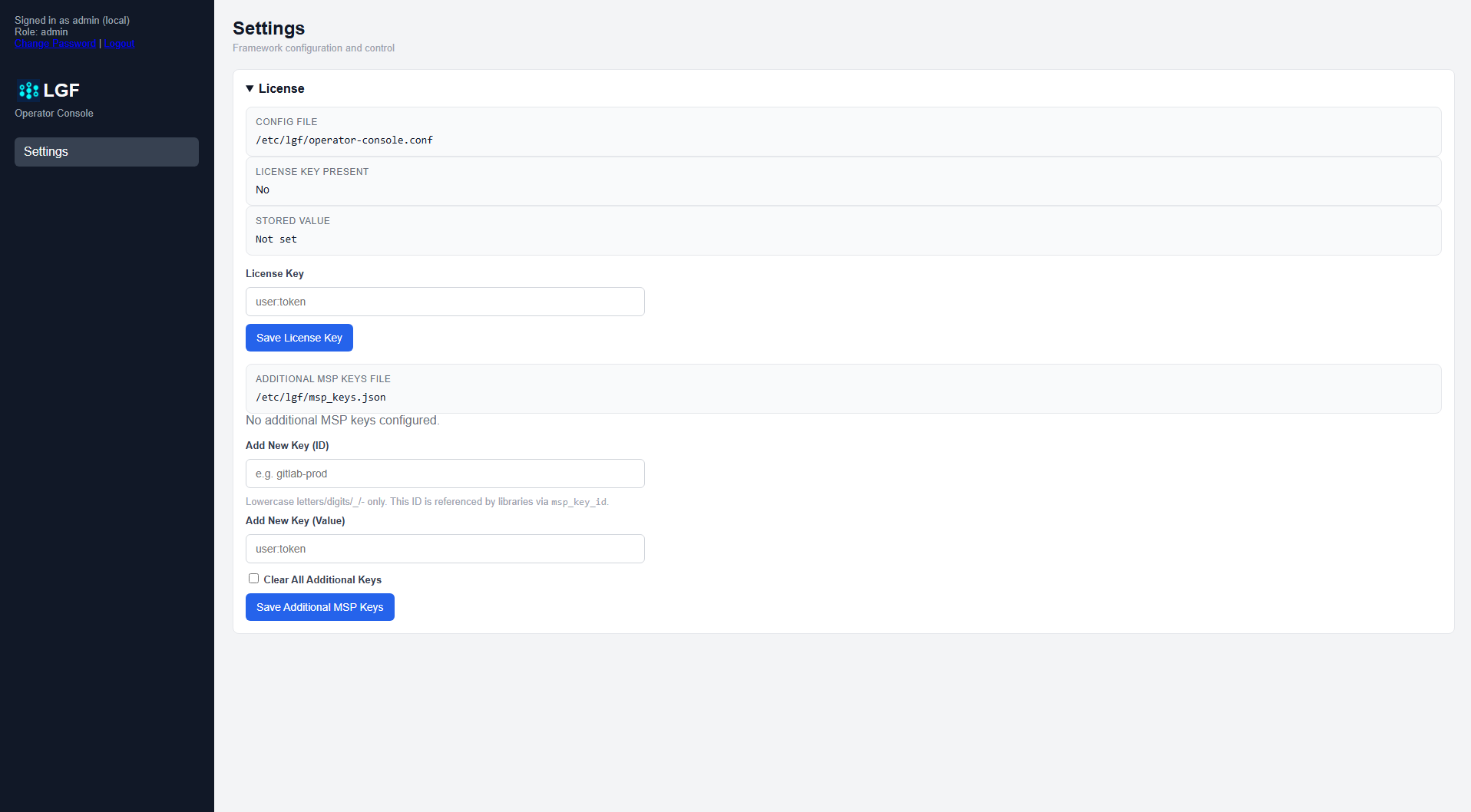
First login license screen
Managing the License Key
After the console is activated, the license can be viewed or updated from Settings.
- Open Settings.
- Expand the License section.
- Enter a new license key if needed.
- Click Save License Key.
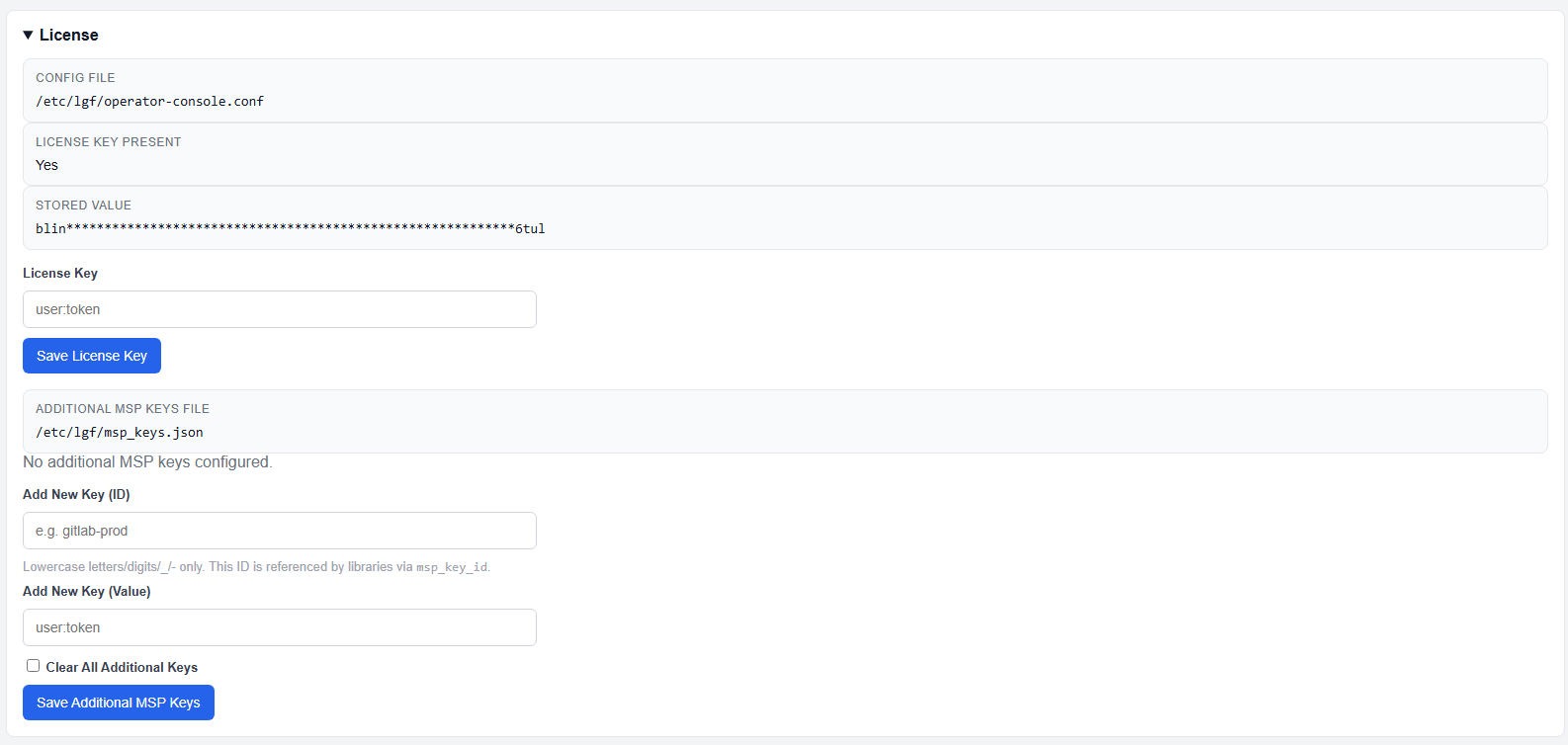
License section in Settings
License Status
The License section shows:
- Config File: Location of the Operator Console configuration file
- License Key Present: Whether a key is currently stored
- Stored Value: Masked value of the stored license key
Additional MSP Keys
The same section also provides controls for additional MSP keys.
- Add New Key (ID): Identifier for the additional key
- Add New Key (Value): Credential value
- Clear All Additional Keys: Removes all additional stored MSP keys
- Save Additional MSP Keys: Saves the configured additional keys
Expected Result
- The Operator Console accepts the license key.
- The console becomes available after first activation.
- The stored license value is masked when displayed.