The Nextcloud platform provides self-hosted file sync and collaboration capabilities within LGF. It includes a web interface, WebDAV access, user management, and an extensible application ecosystem.
Overview
Nextcloud is used for private cloud storage and collaboration on an LGF-managed host.
- Web-based file access
- WebDAV support
- User and group management
- Application ecosystem
This platform supports both local and remote storage configurations.
Deployment
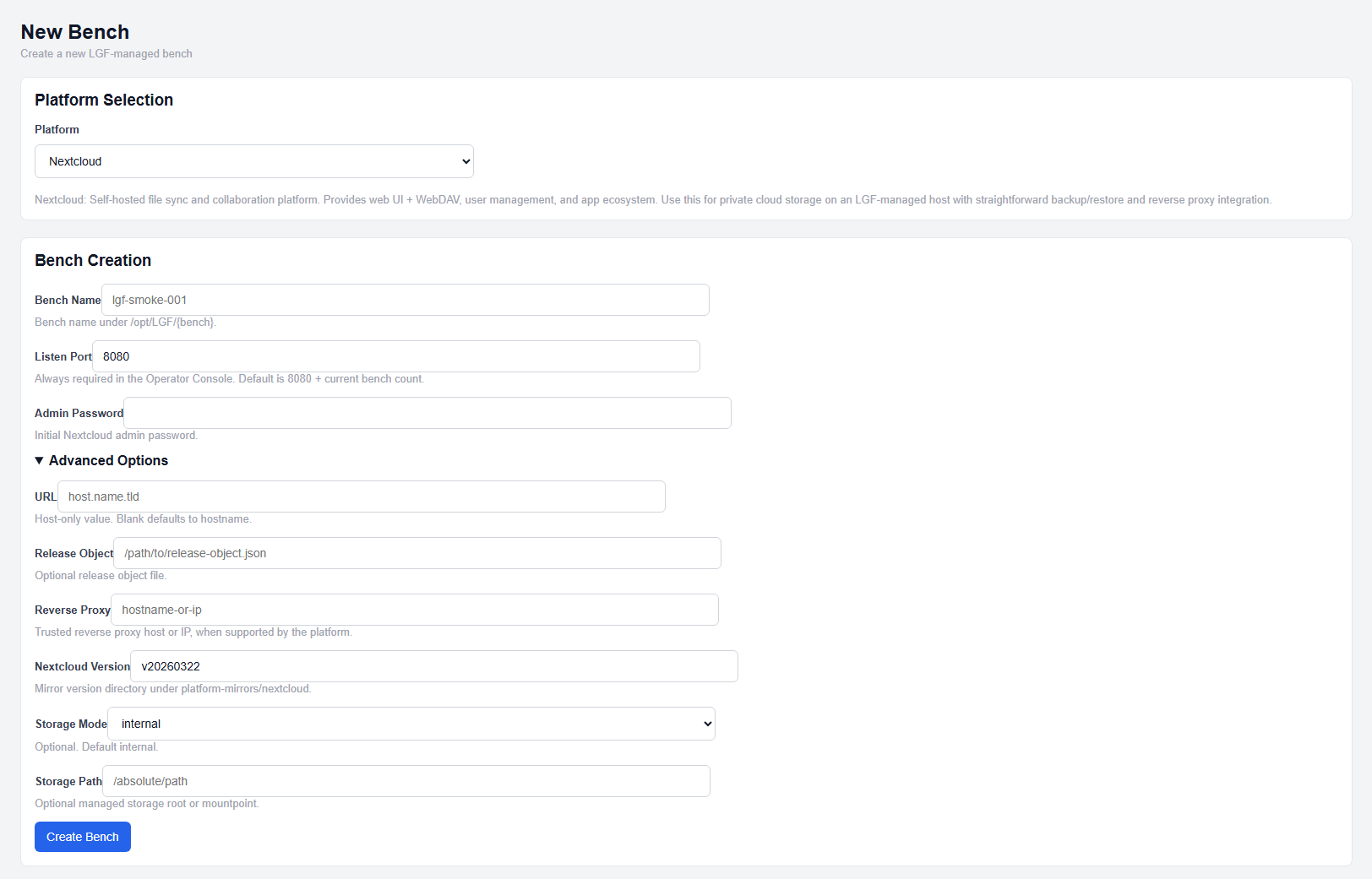
Nextcloud deployment configuration
- Select Nextcloud from the platform dropdown.
- Enter a Bench Name.
- Set the Listen Port.
- Enter an Admin Password.
- Enter a Nextcloud Version.
- (Optional) Configure additional fields.
- Click Create Bench.
Required Fields
- Admin Password: Initial Nextcloud administrator password
- Nextcloud Version: Mirror version label (e.g., v20260322)
These fields are required for deployment.
Standard Fields
- Bench Name: Unique identifier for the deployment
- Listen Port: External listener port (auto-allocated if not set)
- URL: Host-only URL (no scheme, path, or port)
- Reverse Proxy: Optional reverse proxy hostname or IP
URL defaults to an automatically generated hostname if not provided.
Storage Configuration
Nextcloud supports multiple storage modes.
- Storage Mode: Defines storage type (internal, NFS, SMB/CIFS)
- Storage Path: Local storage root or mount point
Remote Storage (NFS / SMB-CIFS)
Additional fields are required when using remote storage modes:
- Storage Remote Server: Remote host or IP
- Storage Remote Path: Export or share path
For SMB/CIFS:
- Storage Username: SMB username
- Storage Password: SMB password
These fields are required depending on the selected storage mode.
Advanced Options
- Storage Salvage: Enables install-time recovery of existing remote data roots
This option is only applicable when using remote storage.
Expected Result
- The Nextcloud bench is created and enters a building state
- Services are deployed and initialized
- The Nextcloud interface becomes accessible via configured port or hostname
Important Notes
- Admin Password and Nextcloud Version are required
- URL must be host-only (no scheme, path, or port)
- Storage Mode defaults to internal if not specified
- Remote storage requires additional configuration fields
- Reverse proxy is recommended for external access
Next Steps
- Access the Nextcloud interface using the configured endpoint
- Complete initial setup inside the application
- Configure users, storage, and applications as needed